
Below is a screenshot of the instructor dashboard, indicating where your school name is and how many student spots that you have been allocated.
If you need more then the number shown on your dashboard, please contact Victoria@aipb.org to have that number updated.
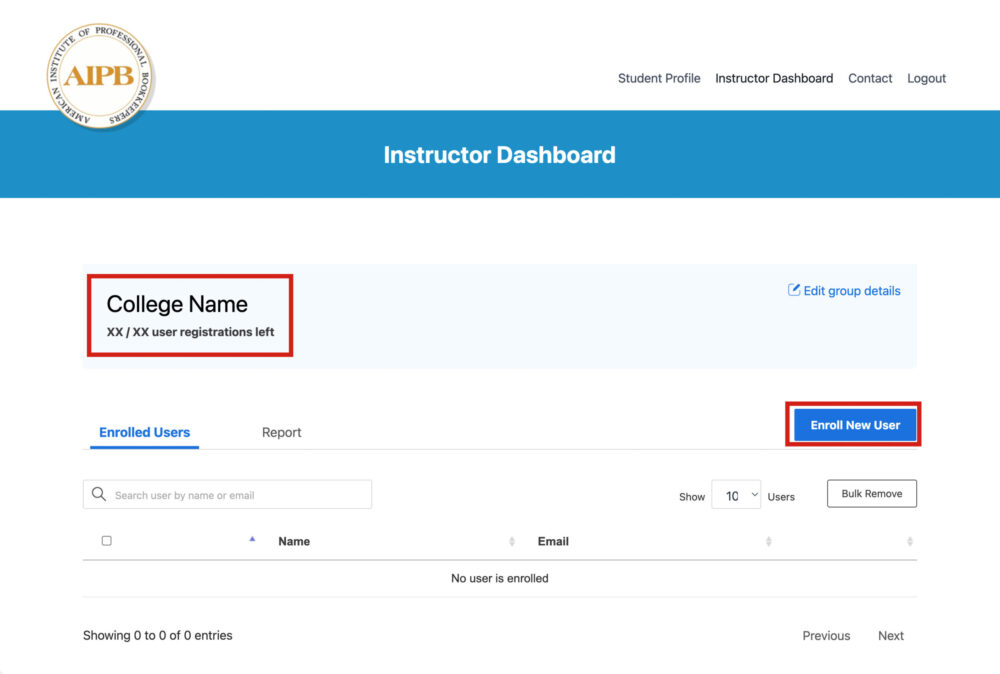
When you are ready to start adding your students, click the “Enroll New User” button indicated above.
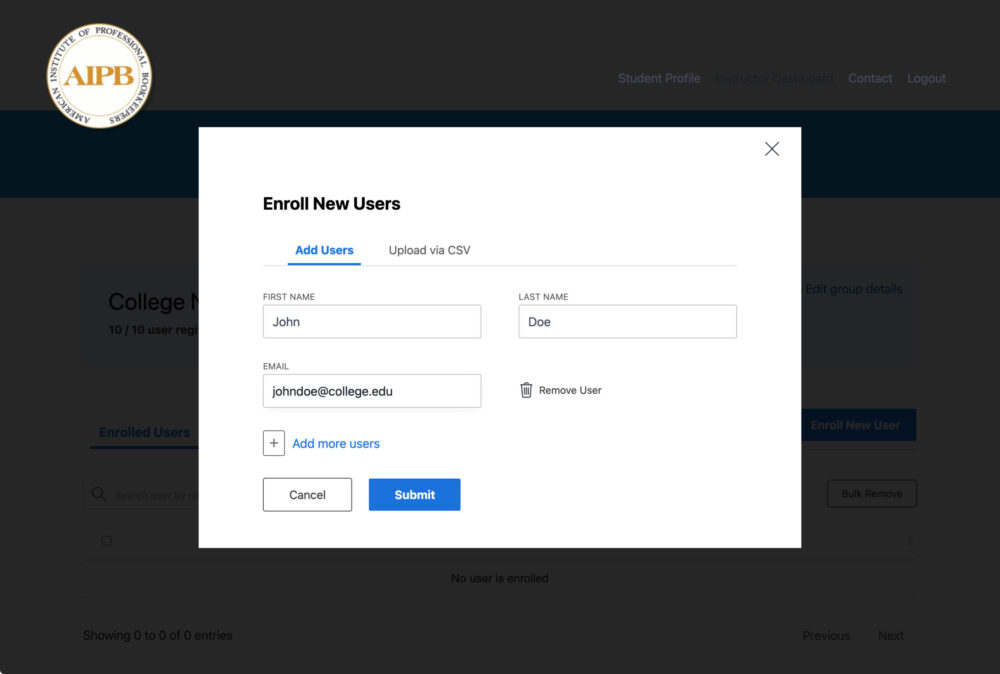
For each student, you will be asked to enter first and last names and their email address. This address will be used to send them an email with the link, their user name, and password to enter the site and begin taking exams.
If you would like to add multiple users at once, you can click the “Add more users” link, or click “Submit” to enter them one at a time.
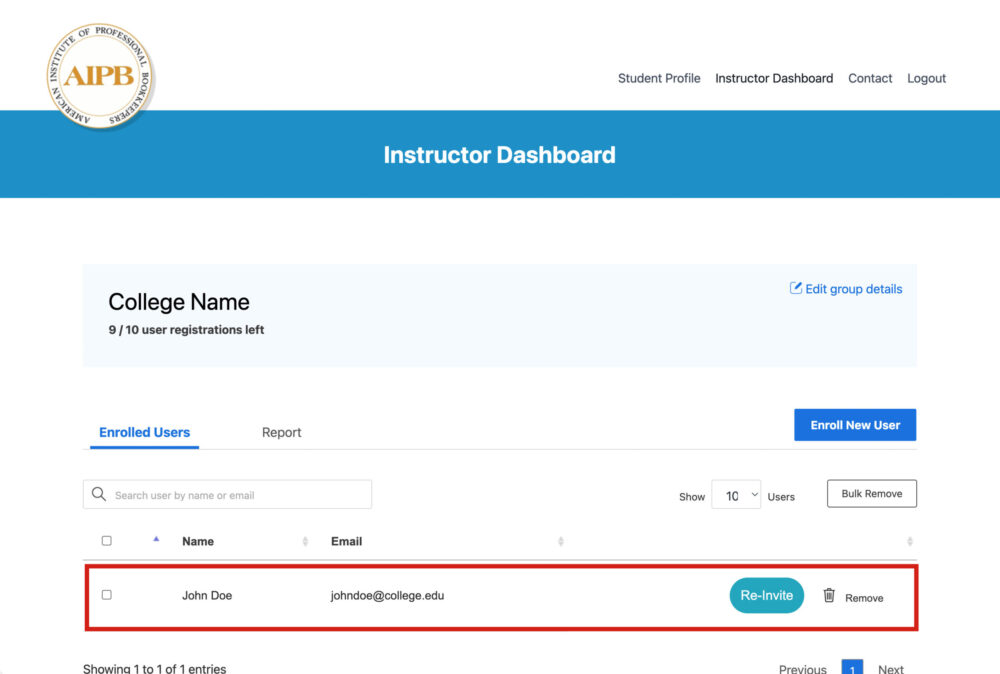
Once students have been entered, your dashboard will show a list of each student as seen in the image below.
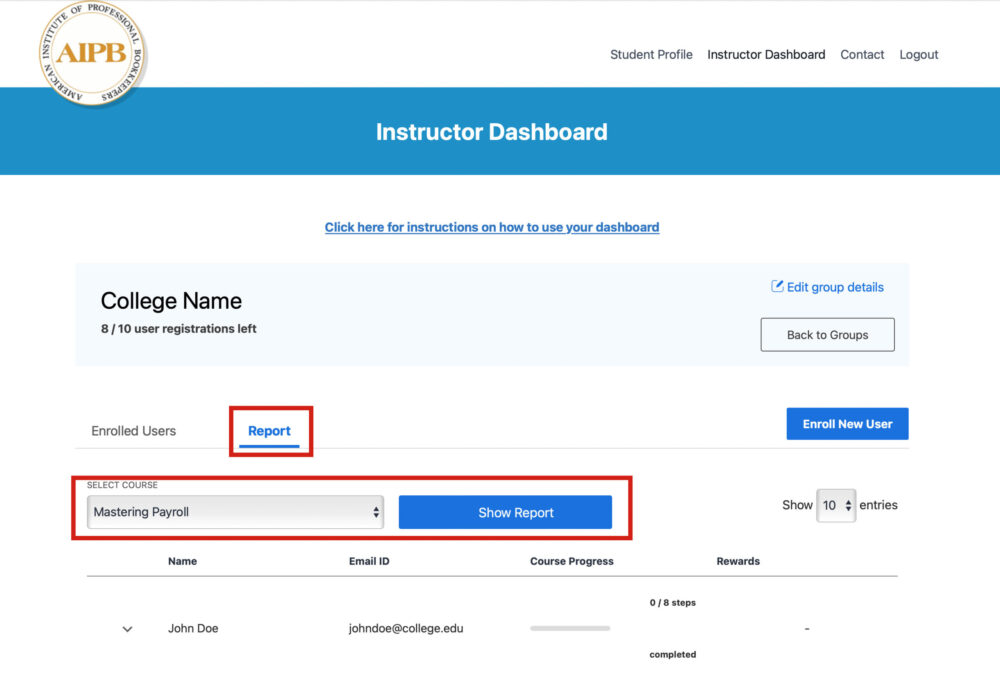
Once students have taken their exams, click on the “Report” tab, select the correct exam from the dropdown menu, and then click the “Show Report” button.
This will refresh the student list to show results of the selected exam. To view these results, use the arrow toggle to the left of the student name.
In the image below you will see the date that the student took their exam, their score, and whether or not they have received their certificate.
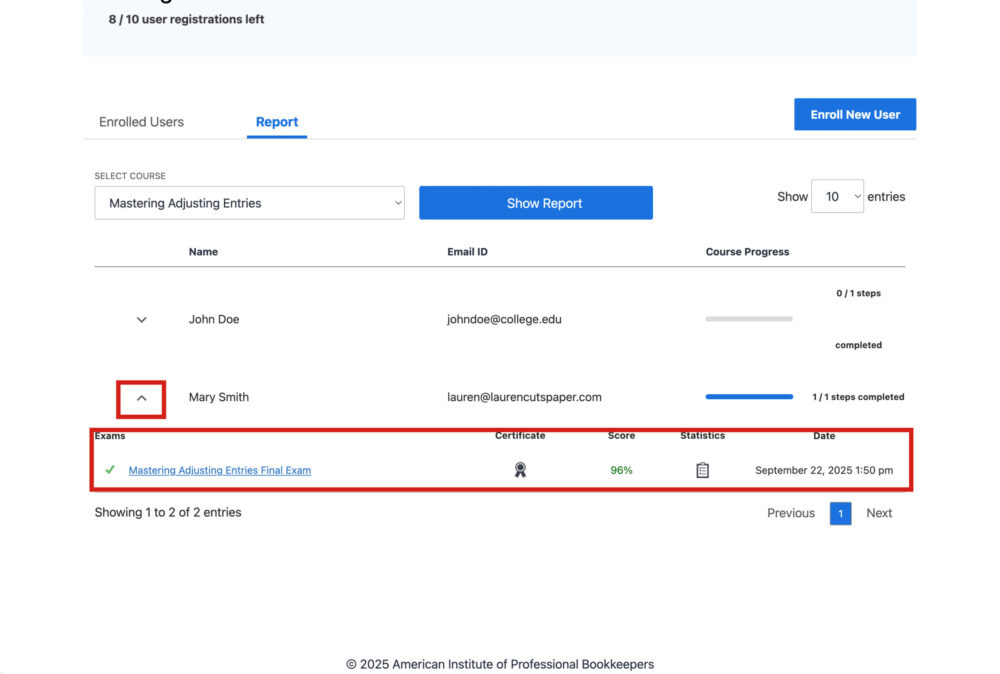
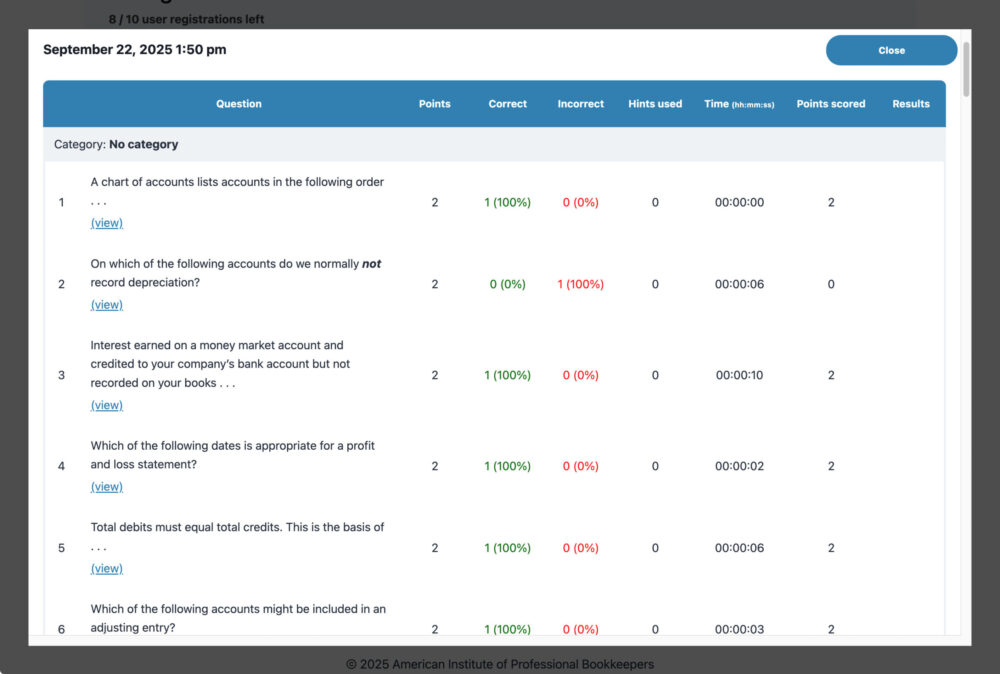
Clicking on the Statistics icon will show you the entire exam with indications of which questions were answered correctly and incorrectly.
If you have any questions, please feel free to contact tech@aipb.org for help.